iPhone 15 eSIM: Set Up, Check Compatibility, Travel
11/18/2026
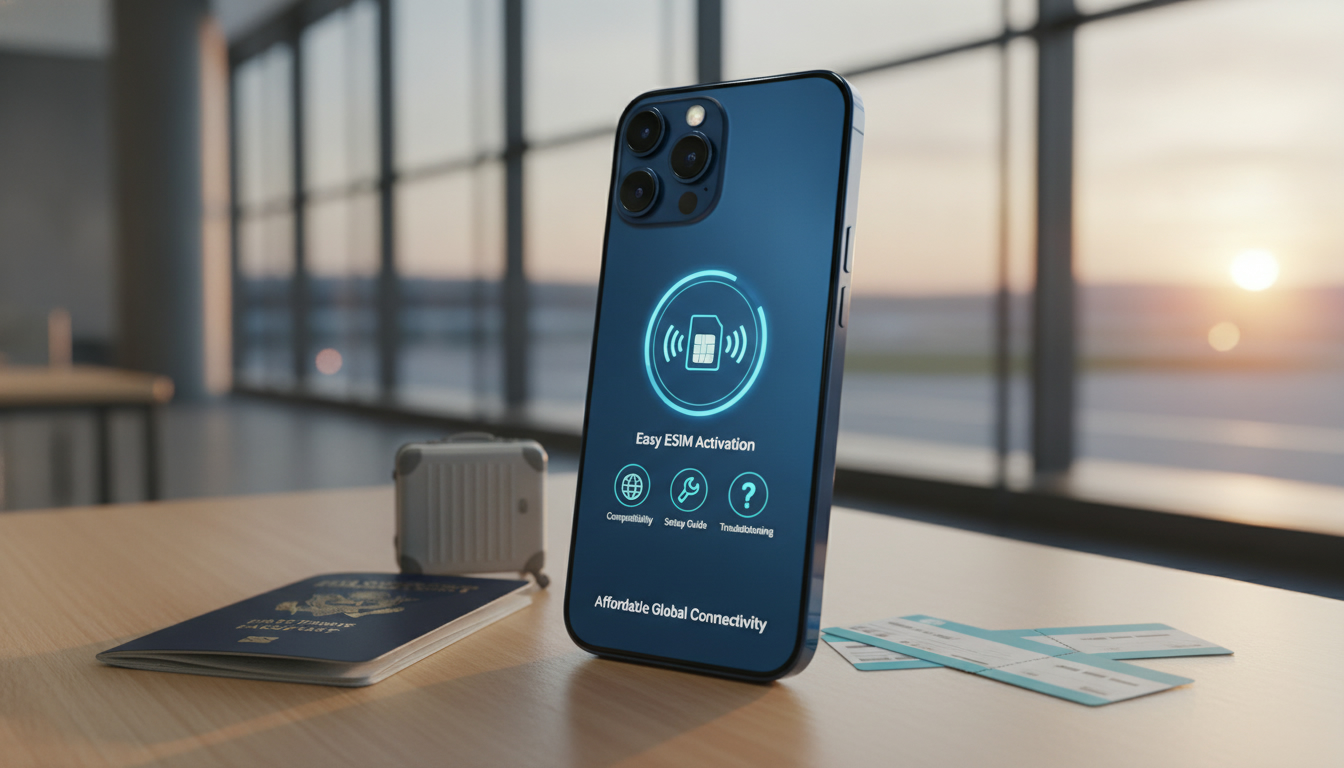
The iPhone 15 supports eSIM, but the exact SIM setup depends on where the phone was sold. U.S.
iPhone 15 models are eSIM-only, while models sold in many other markets may include both a physical SIM tray and eSIM support. Apple identifies the iPhone 15, iPhone 15 Plus, iPhone 15 Pro, and iPhone 15 Pro Max as eSIM-capable, with regional exceptions such as mainland China models.
For a travel setup, check the model and carrier before buying a plan, install the eSIM while you still have Wi-Fi, and keep your primary line available for calls or verification texts. The table below shows current promotion data listed by MyBestSim; discounts are tied to the displayed code and may change.
| Provider | MyBestSim rank | Rating | Promo code | Discount |
|---|---|---|---|---|
| Yesim | 2 | 4.8/5 | MYBESTSIM20 | 20% off unlimited |
| Holafly | 3 | Not listed | MYBESTSIM | 5% off unlimited |
| Orange Travel | 15 | 4.5/5 | MBS05 | 5% off unlimited |
| LinkeSIM | 12 | 4.5/5 | MYBESTSIM | 5% off unlimited |
Check the iPhone 15 before purchasing a plan
Confirm the regional model
Open Settings > General > About and check the EID field. An EID is the identifier used for the phone’s embedded SIM.
If the EID appears, the iPhone has eSIM hardware. You can also look for Settings > Cellular > Add eSIM.
The regional distinction matters:
- U.S. iPhone 15 models: Apple sells these without a physical SIM tray, so mobile service must use eSIM.
- Many international models: Apple may provide both a nano-SIM tray and eSIM support.
- Mainland China models: Apple’s regional specifications can differ, so do not assume that every iPhone 15 sold there supports the same eSIM functions.
- Carrier-locked phones: An eSIM can be technically compatible but unusable with another operator if the iPhone is locked.
To check the lock, open Settings > General > About > Carrier Lock. Apple displays “No SIM restrictions” when the phone is unlocked.
I always check this before buying a travel eSIM because an unlocked phone is the condition that allows a second operator’s profile to register.
Check the carrier and plan
The carrier must support eSIM activation for the iPhone 15. Apple supports several activation methods, including carrier transfer, QR code, carrier app, and manual entry, but the available method belongs to the operator rather than Apple alone.
Ask the carrier whether it supports:
- eSIM Quick Transfer from another iPhone
- QR-code activation
- activation through its iOS app
- prepaid or travel eSIM plans
- dual-SIM use with one physical SIM and one eSIM, or two eSIMs
GSMA Specification SGP.22 defines the remote SIM provisioning architecture used by consumer eSIM devices. In practical terms, the carrier sends a downloadable profile to the iPhone; the phone does not receive a plastic SIM card.
Activate an eSIM on the iPhone 15
Install the profile before leaving reliable Wi-Fi. The download itself requires an internet connection, and trying to activate at an airport with congested public Wi-Fi creates an avoidable failure point.
QR-code activation
- Open Settings > Cellular.
- Tap Add eSIM.
- Choose Use QR Code.
- Scan the QR code supplied by the carrier.
- Follow the prompts to label the line, such as “Travel” or “Primary.”
- Select the default voice line and the line used for cellular data.
- Keep the new line off until you are ready to use it if the plan starts counting validity at activation.
The sign of a successful installation is the new line appearing under Settings > Cellular with its carrier name. If the QR code is displayed on the same iPhone, you cannot scan it from the phone’s own screen.
Ask the carrier for a manual activation method or display the code on another device.
Transfer from another iPhone
Apple’s eSIM Quick Transfer can move a mobile plan between compatible iPhones when the carrier supports it. Keep both iPhones nearby, unlocked, connected to Wi-Fi, and signed in as required by the on-screen instructions.
When the new iPhone shows the transfer prompt, approve it on the old phone. The old line normally stops working after the transfer completes.
Do not erase the old iPhone first: the transfer depends on access to the existing mobile profile.
If the carrier does not support Quick Transfer, request a new QR code. A screenshot of an old QR code may not work because some operators make activation codes single-use.
Set up dual SIM for travel without losing your number
The iPhone 15 can use two active lines when the hardware, region, and carrier support the configuration. Depending on the model, that can mean a physical SIM plus an eSIM or two active eSIMs.
Apple’s dual-SIM controls let you assign labels, a default voice line, and a cellular-data line.
For a travel data eSIM:
- Set your home line as the default voice line if you need its number for calls or texts.
- Set the travel eSIM as Cellular Data.
- Turn Allow Cellular Data Switching off unless you deliberately want the iPhone to change data lines.
- On the home line, disable data roaming unless your carrier confirms that roaming is included.
- Enable data roaming on the travel eSIM only when the travel provider requires it.
The costly mistake is leaving the home line selected for cellular data after landing. The travel eSIM may be installed correctly, but the iPhone continues using the primary line and can generate roaming charges.
I would also avoid deleting the home eSIM during setup: removing the profile does not cancel the carrier account and may make recovery harder.
For calls and texts, iMessage and FaceTime can continue using your Apple account or selected phone number, while ordinary SMS depends on the active carrier line. Bank verification messages may still require the home line to remain connected to a network.
Choose a travel eSIM deal without choosing the wrong plan
The best eSIM plan for the iPhone 15 depends less on the phone than on the destination, validity period, data allowance, hotspot rules, and whether the plan includes a phone number. Many travel eSIMs are data-only, so they will not replace your normal voice line for SMS verification.
MyBestSim lists current provider promotions, including the following usable codes:
- Yesim:
MYBESTSIM20for 20% off unlimited plans; the listed rating is 4.8/5 and the MyBestSim rank is 2. - Holafly:
MYBESTSIMfor 5% off unlimited plans; the provider is listed at rank 3. - Orange Travel:
MYBESTSIMfor 5% off unlimited plans; the listed rating is 4.5/5. - LinkeSIM:
MYBESTSIMfor 5% off unlimited plans; the listed rating is 4.5/5.
Check the destination coverage and validity before applying a code. “Unlimited” does not necessarily mean unrestricted high-speed data: the provider’s terms may define fair-use limits, hotspot restrictions, or reduced speeds after heavy usage.
I would compare the destination network, renewal behavior, and tethering terms before choosing an unlimited label.
A current eSIM promo code guide is useful when you are ready to compare the code with the checkout total. The discount should appear before payment; if it does not, stop rather than assuming it will be applied later.
Fix activation problems before contacting support
When the eSIM will not install
Check these points in order:
- Confirm that the iPhone is connected to Wi-Fi.
- Restart the iPhone and return to Settings > Cellular > Add eSIM.
- Check Settings > General > About for the EID and carrier-lock status.
- Install any available iOS update before retrying.
- Verify that the QR code belongs to this purchase and has not already been used.
- Contact the provider if the message says the activation code is invalid, expired, or unavailable.
Do not repeatedly delete and reinstall a profile. Some carrier activation codes are single-use, so deleting a partially working eSIM can remove the only downloadable copy.
When the line installs but data fails
First select the travel line under Cellular Data, then confirm that data roaming is enabled if the provider requires it. If the phone shows signal bars but no data, the iPhone may be registered to a network without the correct data profile.
Check the provider’s APN instructions rather than entering a random APN value.
If coverage is poor indoors, move outside before changing settings. A weak signal can make activation appear broken, while changing the APN in that situation creates a second problem. For broader buying guidance, the best eSIM comparison site overview explains which plan details to compare before purchase.
Finally, verify that the plan covers the country you have entered and has not expired. A travel eSIM can remain visible in Settings > Cellular after its data allowance or validity has ended; its presence in the menu does not prove that the subscription is still active.
FAQ
Does every iPhone 15 model support eSIM travel plans?
Most iPhone 15 models support eSIM, but regional differences matter. U.S. versions use eSIM exclusively, while many international versions also include a nano-SIM tray. Mainland China models may have different capabilities, so verify the exact regional model and carrier requirements before purchasing a travel plan.
How can you verify an iPhone 15 supports eSIM?
Open Settings, choose General, then About, and look for an EID. You can also open Settings > Cellular and check whether Add eSIM appears. If neither option is available, confirm the model’s regional specifications and ask Apple or your carrier about compatibility.
Can iPhone 15 use a travel eSIM and home number?
Yes, compatible iPhone 15 models can keep a home line active while using a travel eSIM for data. Assign the travel profile to Cellular Data, retain your primary line for calls or verification messages, and disable automatic data switching to help prevent roaming charges.
What should you check before buying an iPhone 15 eSIM?
Confirm that the phone is unlocked by checking for “No SIM restrictions” under Carrier Lock. Then review destination coverage, validity, data limits, hotspot support, activation requirements, and whether the plan includes a phone number. Many travel eSIMs provide data only and cannot receive ordinary SMS messages.
Why might an installed iPhone 15 eSIM have no data?
The travel profile may not be selected for cellular data, or data roaming may be disabled when the provider requires it. Check the destination coverage, expiration status, and APN instructions, then restart the phone. Signal bars alone do not guarantee that the plan is transmitting data.

Sophie Laurent
Sophie is a travel-deals writer. At eSIM Promos she curates the best eSIM promotions and offers so travellers stay online for less.